
The report options described on this page are found throughout the standard economics reports.
Data Options
Use these options to select the data that will be displayed in your reports.
Data Columns
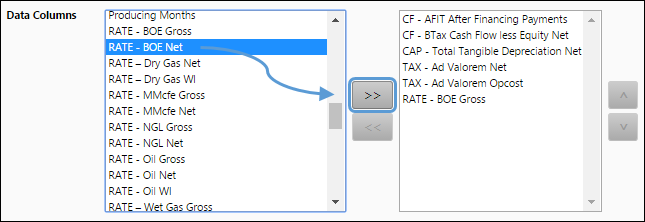
Use the Data Columns report option to choose variables to include in your report. Choose variables from the list on the left by clicking on them, and then click the Add ( >> ) button to add them to your report. You can also double-click on variables to move them between columns.
Time Options
Use the time options to restrict the data in your reports to data from a specific time frame — and select the type of intervals (monthly or yearly) used to break down data in your reports.
Date and Period Type Options
Use these three options to set up the time span and periodicity of your report.
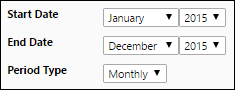
Use the Start Date option to select the earliest date to include in your report. First, choose a month, and then select a year. The End Date option works in the same way; use it to specify the last period included in your report. Then, use the Period Type option to select a periodicity for your report (Monthly or Yearly). If you select the Monthly option, each month in the time span of your report will be delineated in your completed report — monthly variable value contributions will be listed. If you choose the Yearly option, only the years included in your report will be displayed — only annual variable contributions will be listed.
Duration
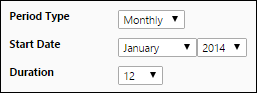
Instead of Start Date and End Date options, some of the economic reports include the Duration option. Use this option to set the length of your report after selecting a period type and start date. Selecting a monthly period type, and a duration of 12 will generate a report that spans one year (12 months).
Report Layout Options
Use the following report options to control the appearance of your economic reports.
Title
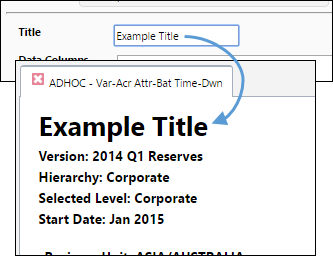
Use the Title field to change the text displayed at the top of your completed report.
Total Position
Use the Total Position option to control where your subtotals will be listed in your report. Two options are available:
- Top: In horizontally-organized reports, subtotaled values will be listed closer to the top of the report. In vertically-organized reports, totals will be listed closer to the left side of the report.
- Bottom: In horizontally-organized reports, subtotaled values will be listed closer to the bottom of the report. In vertically-organized reports, totals will be listed closer to the right side of the report.
Subtotaling
Using the subtotaling report options, you can create totals of your variable values based on the organization of your hierarchy.
Most reports include subtotaling options that will allow subtotaling at the level the report was generated, each folder (attribute) in the hierarchy, and for each object in your hierarchy.
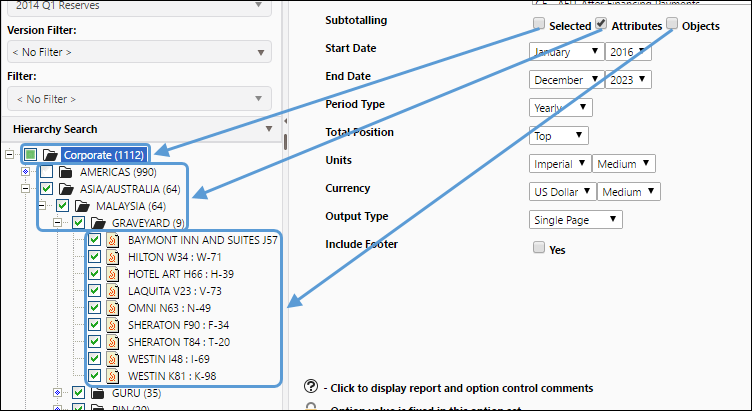
Click image to expand or minimize.
| Subtotaling | If all three subtotaling options are selected, subtotals for each level in the hierarchy are displayed. If no subtotaling options are selected, default subtotaling will be included at the selected level. |
|---|---|
| Selected checkbox | Displays a subtotal for only the selected folder in the hierarchy |
| Attributes checkbox | Displays a subtotal for all of the folders beneath the one you select. |
| Objects checkbox | Displays data for all the objects in the folder. For example, you may have a folder defined as a geographic area, with folders below defined as fields, which in turn contain individual wells. Select this option to display data for each object (in this case, for each well) listed under the folder. |
Units
Use the Units option to select the system of measurement (Metric or Imperial) used for data in your reports. You can also specify a magnitude (Small, Medium, Large) for values in your reports. The same product value, expressed using different factors, can be seen in the table below:
| Magnitude | Value in Report |
|---|---|
| Small | Wet Gas (Gross) 1,050,318.140 Mcf |
| Medium | Wet Gas (Gross) 1,050.318 MMcf |
| Large | Wet Gas (Gross) 1.050 Bcf |
Currency
Use the Currency option to select the currency system (Canadian Dollars, US Dollars, British Pound... etc.) used for dollar values in your reports. You can also specify a magnitude (Small, Medium, Large) for values in your reports. The same dollar value, expressed using different factors, can be seen in the table below:
| Magnitude | Value in Report |
|---|---|
| Small | Revenue (Total Net) 5,553,904.502 $USD |
| Medium | Revenue (Total Net) 5,553.905 M$USD |
| Large | Revenue (Total Net) 5.554 MM$USD |
Include Footer
Toggle the Include Footer option to add a footer to the bottom of your completed report that will list:
- The user who ran the report.
- The date and time that the report was run.